
- Bluebeam
Subscription Management Guide
- Overview
Welcome to the Bluebeam Org Admin Portal where account owners manage access for subscription-based Bluebeam solutions. The Org Admin Portal allows the following permission levels:
IT Admin:
As an IT Admin, you can enable and manage SSO for your organisation. In addition, you can manage all users in the organisation and domain names associated with it. This permission level allows you to allocate Bluebeam subscription seats, add or deactivate users, assign additional Org Admins and Limited Admins, and domain names.
The ability to configure SSO is in an early access phase and only available if your organisation qualifies. For more information, contact Support.
Org Admin:
As an Org Admin, you can manage all users in the organization and domain names associated with it. This permission level allows you to allocate Bluebeam subscription seats, add or deactivate users, assign additional Org Admin
If your Bluebeam Plan has a single user account, the account has End User permissions and doesn’t qualify for Org Admin permissions.
End User:
End users are users in your organisation who use Bluebeam products and services. End users can’t use the features in the Org Admin Portal. If you purchased seats to an existing subscription in the Webstore, you are automatically assigned End User permission levels.
After logging into the Org Admin Portal, bookmark org-admin.bluebeam.com for future easy-access.
In this guide, we cover how to set up and manage your Bluebeam Plan account(s), so you and/or your team can access Revu 21, Bluebeam Cloud, and Studio with just a single BBID. No serial number or product key is necessary to get started.
Log into the Org Admin Portal
To get started in the Org Admin Portal
1. Type org-admin.bluebeam.com into your web browser.
2. Select your server region.
3. Enter your BBID and password.
Add a New Subscription User
To add individual new users to your account:
1. From the left sidebar menu, select, Users.
2. From the top of the active window, select Users.
3. Under Users and Current Plan, select Create New User to the right of User Overview.
4. Select the Add New Subscription User tab, and provide the requested information on the form.
5. After you finish entering the new user’s information, select Save.
6. Select a plan for the new user.
7. Select Save Changes.
The new user will appear under User Overview with a Pending status until their account is activated via email invitation.

An Org Admin can also add multiple users to their account.
Only an Org Admin can use this feature.
To do this:
1. From the left sidebar menu, select, Users.
2. From the top of the active window, select Users.
3. Under Users and Current Plan, select Create New User to the right of User Overview.
4. At the top of the window, select the Bulk Add Users tab.
5. To add multiple users, you’ll need to import a CSV file. Download the template provided and input all mandatory information in Excel. You may add up to 500 users at a time.
If you’ve added multiple users via the template previously, be sure to download and use the latest version of the template when attempting a subsequent bulk upload. Otherwise, it won’t process.
6. Within the template, designate subscription access (i.e., Basics, Core, or Complete) for users in the Plan column.
If you want to add any users as unpaid collaborators, leave the Plan column blank for those users.
7. You can also specify the server region for multiple users in the spreadsheet.
Don’t delete any columns from the CSV template (even for non-mandatory fields). Otherwise, your bulk upload will not process.
8. After saving your version of the CSV, upload it under Bulk Add Users. To do this, drag and drop the file or Browse for it in the File Explorer.
9. Select Run Validation.
10. When the CSV file is processed, it will appear at the bottom of the window.
11. Select Import All. Imports can take up to 10-15 minutes.
12. After reviewing the Summary, select Close.
To edit permissions after adding a user, follow these steps:
From the left sidebar menu, select Users.
- Under User Overview, locate the user account that needs updated permissions.
- Select the
 menu icon next to the account status.
 - Select Edit user information.
- Under Permissions, select IT Admin, Org Admin, Limited Admin, and/or End User.The ability to select and assign the IT Admin permission is available only to IT Admins performing this procedure.
- Select Save.
If you need to assign or edit subscription access for multiple users at a time, follow these steps:
From the left sidebar menu, select Account Settings.
From the top of the active window, select Subscriptions.
- For a subscription plan with available seats, select the menu icon at the far right.
- Select Assign Members to Plan.
- Under Account users, select each user you want to add to your subscription.
- After you select all applicable users, select the right arrow to move them to Current users.
- Select Save.
On the Users page, you can also find particular account users and/or filter them by categories.
From the left sidebar menu, select Users.
- Under User Overview, select the dropdown menu next to the funnel.

From the list of search options, select the category in which you’d like to filter subscription users:
- First Name
- Last Name
- Email Address
- Server Region
- Contract / Plan
- User Type
- Status
You cannot filter by the Last Login column. In addition:
- Last Login displays the last login date and time since Bluebeam began capturing this data. As a result, the value could be blank if a historical last login took place prior to that date.
- Last Login is updated when Revu, Studio, or Bluebeam on web and mobile is open on a user’s device and approximately every 60 minutes they use their application. The value isn’t updated if the user closes down one of these products.
- A “Created” date in this column indicates the date the user was issued a plan, but they haven’t yet logged in to a Bluebeam product.
You can also search by keyword if looking for a particular account user and/or email:
- Type your search term in the field next to the filter dropdown list.
- Select the magnifying glass or press Enter.
Your search results display under User Overview.
You can also sort columns by values. To do this, select the arrow that appears when you hover your cursor over a column heading:

Sorting by last name with the downward arrow will list users alphabetically in descending order. To switch to ascending order, select the arrow again for it to turn upward.
This feature allows organizations with a large number of users to easily view and sort users by criteria like Status, Plan, User Type, or any other column in the list. To do this:
From the left sidebar menu, select Users.
- To the right of User Overview, select Export.
The Excel file appears within a ZIP file in your Downloads folder.
On the Users page, you can also edit information for existing account users.
- Under User Overview, select the menu icon next to a user’s status for additional options.
- Select Edit user information.
- In the Modify Subscription End User dialog, you can modify product tiers, change permissions, and/or update contact details.
- When finished editing user information, select Save.
When editing user information, you can’t update the email address for an account. If you’ve entered the incorrect email address for an invited user, you must deactivate their account and add a new subscription user with the correct email address.
If needed, you can change subscription access for a user from the Users page.
- From the User Overview section, select the : menu icon next to the user’s status and select either option:
- Edit user information > Modify Plans
- Modify Subscription Access
- Select a plan with available seats and select Save Changes.
If you’ve assigned all available seats for a particular subscription, you can change an existing user’s access to Unpaid Collaborator to free up a seat for a new user.
To modify subscription access for multiple users, follow these steps:
- From the left sidebar menu, select Users.
- Filter your user list by a specified category and keyword(s) to display only the users whose subscription access you want to modify.
- Under User Overview, select Bulk Actions > Modify Plan.
- Select a plan, and select Save Changes.
When you add new subscription users, invitations are sent out via email for their accounts to be created and activated. If they don’t create and activate their accounts and they no longer have access to their invitation email, you can resend the invitation.
To resend an invitation to a user, follow these steps:
- From the left sidebar menu, select Users.
- Under User Overview, select the : menu icon next to a user’s status and select either option:
- Edit user information > Resend Invitation
- Resend invitation
- Select Resend.
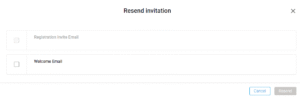
Registration Invite Email
Select the Registration Invite Email option for users with an Expired status. This allows them to activate their accounts and confirm/create their Bluebeam IDs (BBIDs) for logging into Revu 21, Studio, and Bluebeam on web and mobile.
Welcome Email
Select the Welcome Email option for users with an Accepted status who have activated their accounts and confirmed/created their BBIDs. This email provides them a link to download Revu 21 and confirm the server region they should select when accessing Bluebeam solutions.
Bulk Resend Invitation
When you add new subscription users, invitations are sent out via email for their accounts to be created and activated. If a user doesn’t create and activate their account and they no longer have access to their invitation email, you can resend the invitation. If multiple users in your organization have a status of Expired or Pending, you can resend an invitation to all those users with one action.
To bulk resend invitations, follow these steps:
- From the left sidebar menu, select Users.
- Filter your user list by Status.
- Select Pending and/or Expired as the search criteria.
- Under User Overview, select Bulk Actions > Resend Invite.
- When prompted to confirm, select Resend Invitations.
Deactivated users can’t access Bluebeam solutions (Revu 21, Studio, and Bluebeam on web and mobile) if/when they attempt to sign into them. If you’d like to maintain a user’s access to collaborate without consuming a subscription seat, you can downgrade them to an Unpaid Collaborator instead of fully deactivating them.
To deactivate or downgrade a user, follow these steps:
- From the left sidebar menu, select Users.
- Under User Overview, select the menu icon next to a user’s status.
- Select Deactivate User.
- Select Downgrade or Deactivate.Selecting Downgrade changes the user’s subscription plan to Unpaid Collaborator.
Org Admin also allows you to use the filter feature to downgrade or deactivate multiple users. Deactivated users will remain listed under User Overview.
- From the left sidebar menu, select Users.
- Filter your user list by a specified category and keyword(s) to display only the users you want to deactivate.
- Under User Overview, select Bulk Actions > Deactivate.
- When prompted, select to either Downgrade or Deactivate the selected users.
If you need to reactivate an inactive user, follow these steps:
- Select the menu icon next to a deactivated user’s status.
- Select Reactivate User.
- Choose the permission level for the reactivated user, and select Save.
- Select a plan, and select Save Changes.
To bulk reactivate users, take the following steps:
- From the left sidebar menu, select Users.
- Filter your user list by a specified category and keyword(s) to display only the users you want to reactivate.
- Under User Overview, select Bulk Actions > Reactivate.
- When prompted to confirm, select Reactivate.
- Select a plan, and select Save Changes.
Our suggested best practice is to deactivate users who are no longer employed by your company. If you no longer want to see deactivated users listed under User Overview on the Users and Current Plan page, you can remove them from Org Admin.
You should remove only former employees who you do not expect to return, and leave other deactivated users in the User Overview so they’ll be available for reactivation.
To remove deactivated users, follow these steps:
- Under User Overview, select the menu icon next to a deactivated user’s status.
- Select Remove User.
- Select Save.
To bulk remove deactivated users, follow these steps:
- From the left sidebar menu, select Users.
- Filter your user list to display only the users you want to remove.
- Under User Overview, select Bulk Actions > Remove.
- When prompted to confirm, select Remove.
If your account includes child accounts, you can transfer available subscriptions to them from your main Bluebeam account.
To redistribute available subscriptions to an existing subaccount:
- Open the main, parent account with available subscriptions. From your account dashboard, you’ll see your child account(s), listed in the left sidebar.
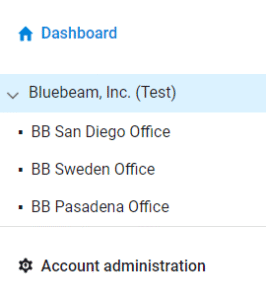
Select Reallocate Subscriptions. You can also go to Account Settings and select the Subscriptions tab and then select Reallocate Subscriptions.
- Select the child account that will receive subscriptions.
- Select the order number.
- Under Product, choose the subscription plan (Basics, Core, or Complete) with available seats to transfer.
- Enter the number of subscriptions to reallocate. The number must be less than or equal to the number of remaining seats.
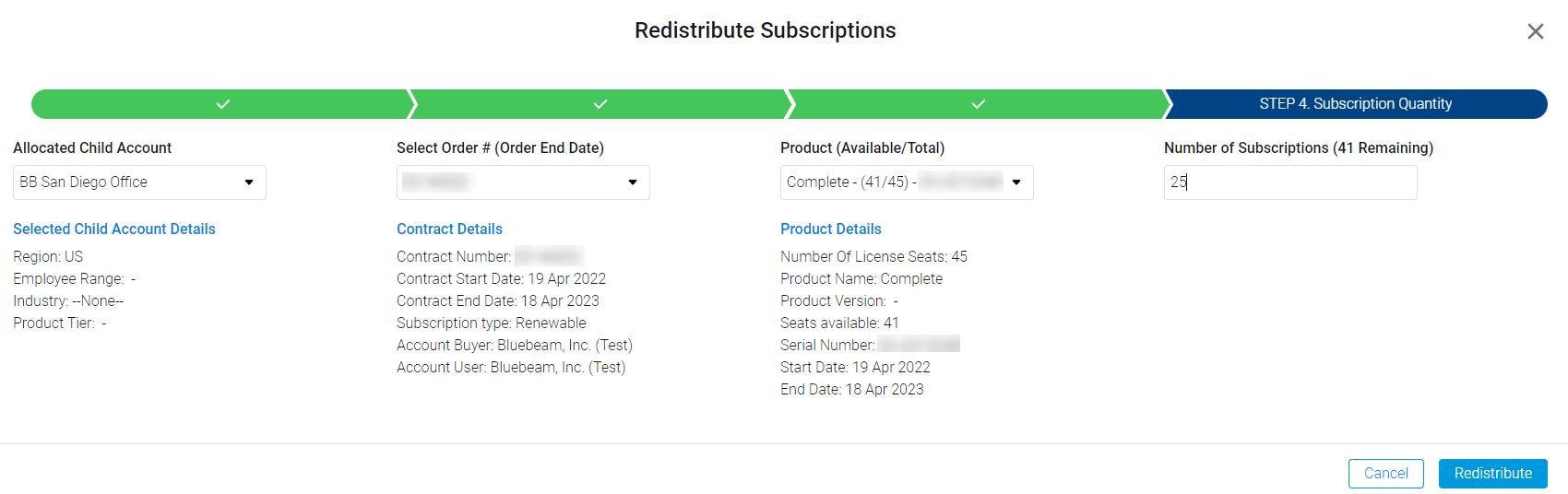
- Select Redistribute.
To view subscriptions distributed among your child account(s):
Go to Account Settings > Subscriptions tab.
- Under Subscription Management, select the menu icon.
- Select Show Split Sub Distributions.
To return subscriptions to a parent account:
Select the child account from the Dashboard.
Go to Account administration > Subscription Management.
Select the
menu icon next to Plan.Select Return subscriptions.
Enter the number of subscriptions you want to transfer back to the parent account.
Select Return subscriptions.